In today’s digital world, it’s easy to lose track of how much time we spend on our phones. Especially when it comes to social media, games, and mindless scrolling. If you are an iPhone user, Apple has made it super simple to check your usage with an app that is built into the operating system called “Screen Time.”
Whether you want to reduce distractions for yourself, keep a watchful eye on your child’s phone usage, or simply be aware, here is a step by step guide to show you how to check Screen Time on iPhone.
What is Screen Time?
Screen Time is a feature Apple released with iOS 12 that provides insight into how users are using their devices. It breaks down your app use, phone pickups, notifications received, and more! You can set app limits, downtime, and content restrictions.
How to Check Screen Time on iPhone
Follow these simple steps:
Step 1: Open Settings App
Tap on the Settings icon on your iPhone home screen.
Step 2: Scroll Down and Tap “Screen Time”
You will find it scrolling down a few sections under Focus or under Battery depending on your iOS version.
Step 3: View Your Usage Summary
Once you are on the Screen Time page you will see a summary that includes:
- Daily or Weekly Report
- Total screen time
- Most used apps
- How many times have you picked up the phone
- Notifications received
Tap ‘See All Activity’ for the full details.
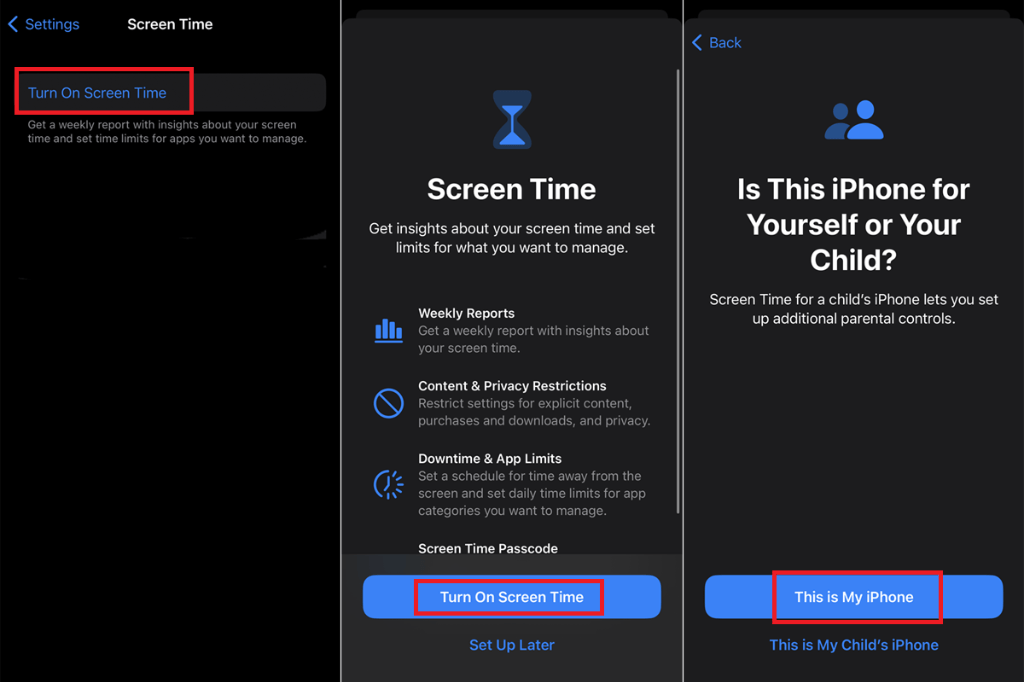
Optional: Turn On Screen Time (if it is not already ‘On’)
If you have never used Screen Time:
- Go to your Settings > Screen Time
- Tap Turn On Screen Time
- Tap This is My iPhone or This is My Child’s iPhone
- Tap through the prompts to customize it
Features to Explore
- App Limits: Set daily time limits on apps or app categories (e.g. social media).
- Downtime: Set time away from the screen (e.g. during bedtime).
- Always Allowed: Allow specific apps to be always available.
- Content & Privacy Restrictions: This is great to set parental controls.
Why Use Screen Time?
- To develop healthier digital habits
- To monitor productivity
- To manage distractions
- To appropriately manage children’s screen time
Bonus Tip: View Screen Time on Multiple Devices
If you share an Apple ID across multiple devices (like an iPad and an iPhone), you can view Screen Time on all of your devices.
Follow these steps:
- Open Settings > Screen Time
- Select Share Across Devices and click to turn it on
Conclusion
Being mindful of your digital behaviour is the first step to taking control and creating balance. Apple’s Screen Time tool is a great resource to help you take charge of how you spend time on your iPhone.
So why wait? Check your Screen Time and take that first step toward a healthier digital lifestyle!
Read about: How to Become a Freelance Writer?
 Xorvex
Leave a comment